Start in three steps
- Install it. The program needs the
typstcommand inPATH.cargo install --locked --git https://github.com/Orpheus-21/lazytypst - Start it in a folder with Typst files.
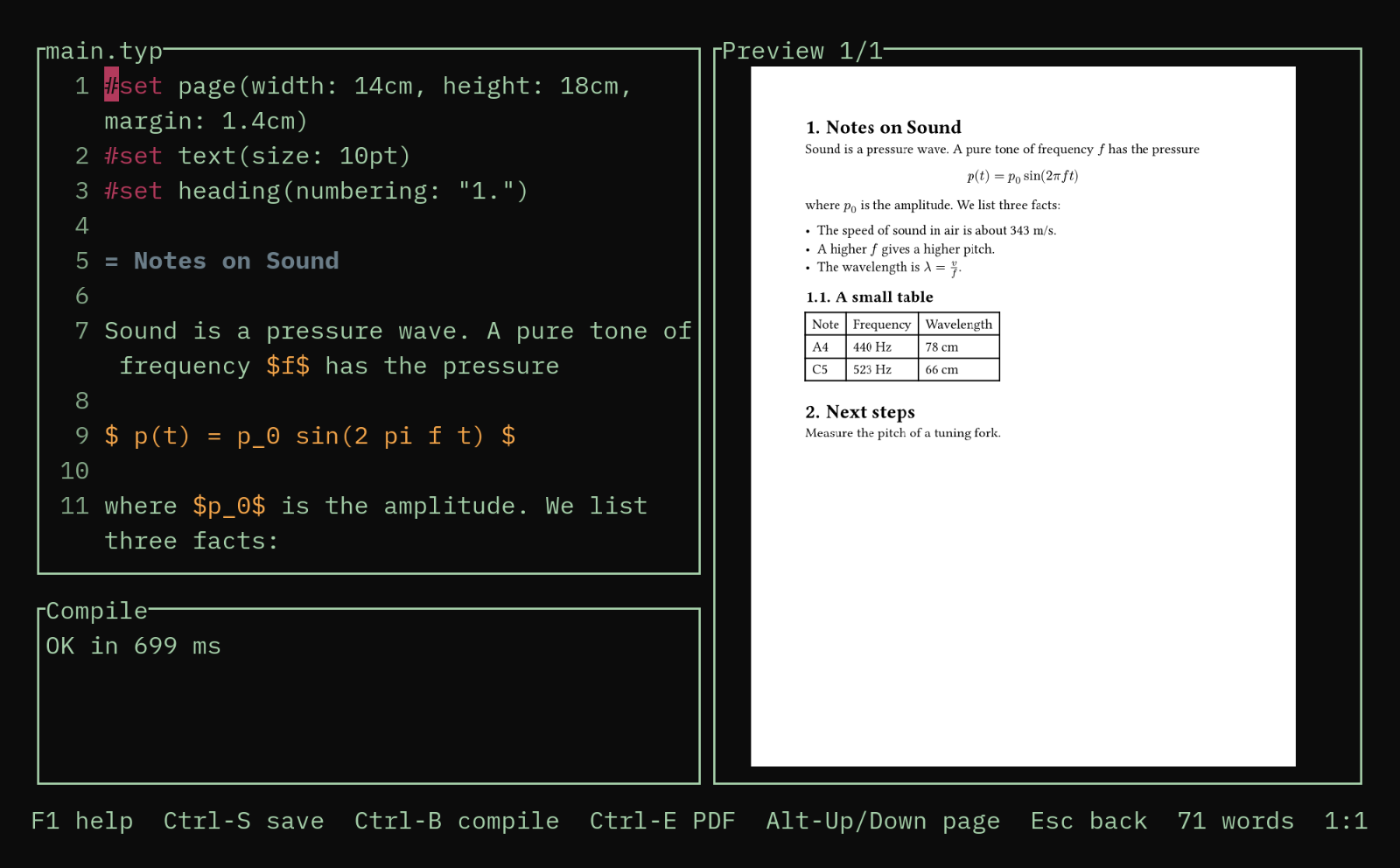
lazytypst ~/my-typst-folder - Select a file with j and k, press Enter, and type. The preview follows the text. Press F1 to see all keys.
What it does
- Browse
- Lists the
.typfiles up to three folders deep. / filters the list, s sorts by the last change, and each line shows its age. - Edit
- A text area with line numbers, wrapped lines, search, undo, and colors for headings, commands, strings, math, and comments. The status line shows an approximate word count.
- Save
- Saves 300 ms after your last key. It writes only when the text has edits, it refuses to overwrite a change that another program made, and it writes a temp file and renames it.
- Compile
- Runs
typst compileafter each save and shows the errors with their line numbers, the time, and the counts. A new compile stops the one that still runs. - Preview
- Shows one page as an image, in the terminal. A page turn is one compile. The page of a book of 500 pages shows after 0.7 s in a release build. F11 fills the screen, and + and - zoom.
- Main file
- Mark a main file with m. The compile and the export then use it, whatever chapter you edit. Ctrl-G opens the file of the first error at the error.
- Export
- Ctrl-E writes the PDF next to the file, and Ctrl-O opens it. E in the list exports the selected file.
Install
With Cargo
cargo install --locked --git https://github.com/Orpheus-21/lazytypstCargo puts the program in ~/.cargo/bin. To update, run the command again.
On Arch Linux
The folder packaging/aur/ of the repository has a PKGBUILD for lazytypst-git. Run makepkg -si in it. The package is not on the AUR yet.
From a release
The releases page has a static binary for x86_64 Linux, its checksum file, and the man page. The first release is 0.1.0.
From a clone
git clone https://github.com/Orpheus-21/lazytypst.git
cd lazytypst
cargo build --releaseAll keys
This is the text of lazytypst --help, and the window that F1 opens. In that window, Enter on a line presses the key of that line.
| ? or F1 | Show this help window. |
|---|---|
| F9 | The mouse on or off. On: a click selects a file, a second click opens it, and the wheel moves the selection. The terminal cannot select by itself then: hold Shift and drag. |
| j or Down | Select the next file. |
| k or Up | Select the previous file. |
| Enter | Open the selected file. |
| n | Make a new .typ file. Type a path such as chapters/two. The ending .typ is added. |
| E | Export the PDF of the selected file next to it. |
| e | Edit the selected file in $VISUAL or $EDITOR, then open it here. |
| s | Switch the order: by path, or the newest change first. |
| y | Copy the absolute path of the selected file to the system clipboard. |
| / | Filter the list. Type a part of a path. Enter keeps the filter, Esc removes it. |
| r | Read the folder again, to show new files and to drop deleted files. |
| g or Home | Select the first file. |
| G or End | Select the last file. |
| m | Mark the selected file as the main file, or remove the mark. lazytypst then compiles the main file, whatever file you edit. |
| q | Quit. |
| F1 | Show this help window. |
|---|---|
| F2 | Switch to another file. Type to filter, Enter opens. F2 again opens the file before this one. |
| Ctrl-S | Save the file. |
| Ctrl-B | Save and compile the file. |
| Ctrl-E | Save the file and export a PDF next to it. |
| Ctrl-F | Search. Type the text, then Enter or Ctrl-F for the next match. Alt-R switches to a regular expression. Esc closes. |
| F11 | Show the preview on the full screen, and back. There, the plus key and the minus key zoom, 0 shows the whole page, and the arrow keys move the view. Typing does nothing there. |
| F5 | Turn the live compile off or on. Autosave stays on. |
| Ctrl-G | Go to the first error of the last compile. |
| Alt-Enter, Ctrl-] | Open the file that the string under the cursor names, for example in #include "chapters/two.typ". The text is saved first. F2 F2 goes back. |
| F3 | The preview follows the cursor, or not. When the cursor enters another section, the preview goes to the page of its heading. Alt-Up and Alt-Down still turn pages. |
| F6 | Show the history: the saved versions of this file, with their age and what they would change. Enter restores one as an edit, and Ctrl-Z undoes it. The versions are in the state folder, not in the project. |
| F7 | Spell check on or off. It needs hunspell and a dictionary. The language comes from #set text(lang: "de"). Unknown words are underlined. |
| Alt-; | Go to the next misspelled word and show what to do: a suggestion, add the word to your dictionary, or ignore it. |
| F9 | The mouse on or off. On: a click puts the cursor there, a drag selects, the wheel scrolls the text, and the wheel over the preview turns pages. The terminal cannot select by itself then: hold Shift and drag. |
| Alt-L | Load the file from disk and drop the edits of the buffer. Your text goes to the history first (F6). Use it when the file changed on disk. |
| Alt-I | Insert the image from the system clipboard: it is saved in the folder images of the project, and an #image line is put at the cursor. It needs wl-paste or xclip. |
| F10 | Change the layout: editor and preview side by side, editor above the preview, or editor only. A window under 100 columns starts stacked. The choice is kept. |
| F4 | Show the outline: the headings of the file. Type to filter, Enter jumps to the heading, F4 or Esc closes. |
| Alt-S | Replace the text of the last search. Type the new text. Enter replaces one match and goes to the next. Alt-A replaces all. Esc stops. Press Alt-S in the search prompt, too. |
| Alt-G | Go to a line. Type the line number, or line:column, then Enter. Esc closes. |
| F8, Shift-F8 | Go to the next error, or the previous error. The search wraps at the ends. |
| Ctrl-O | Open the last exported PDF in the system viewer (xdg-open). |
| Alt-Down | Show the next page. |
| Alt-Up | Show the previous page. |
| Alt-Home | Show the first page. |
| Alt-End | Show the last page. |
| Esc | Save the file and go back to the file list. |
| Ctrl-Q | Save the file and quit. |
| Ctrl-U, Ctrl-Z | Undo. |
|---|---|
| Alt-A | Select all the text. |
| Ctrl-R | Redo. |
| Shift with arrow keys | Select text. |
| Ctrl-C | Copy the selection. It also goes to the system clipboard. |
| Ctrl-X | Cut the selection. It also goes to the system clipboard. |
| Ctrl-Y | Paste the text that the text area holds. |
| Shift-Tab | Remove one indent level from the line. |
| Enter | Break the line and keep its indent. After ( [ or { the new line has one level more. |
| Ctrl-W | Delete the word before the cursor. |
| Ctrl-K | Delete to the end of the line. |
| Ctrl-J | Delete to the start of the line. |
| Alt-F, Alt-B | Move one word forward or back. |
| Ctrl-A, End | Move to the start or the end of the line. |
| Ctrl-Home, Ctrl-End | Move to the start or the end of the file. With Shift, select to there. |
| Ctrl-V, Alt-V | Scroll one page down or up. |
| Alt-<, Alt-> | Move to the first or the last line. The column stays. |
Limits
lazytypst edits one file at a time. It is not a file manager, a language server client, or a plugin host, and it has no completion. It does not replace the options of the Typst CLI with settings. See the scope in the README.
The tests run on Linux only. The sixel and iTerm2 protocols and terminals other than Ghostty are not tested.